How to Scan Receipts: Complete Practical Guide
A complete, beginner-friendly guide to scanning receipts correctly: setup, capture, OCR quality, naming, organization, tax and reimbursement workflows, and long-term storage best practices.

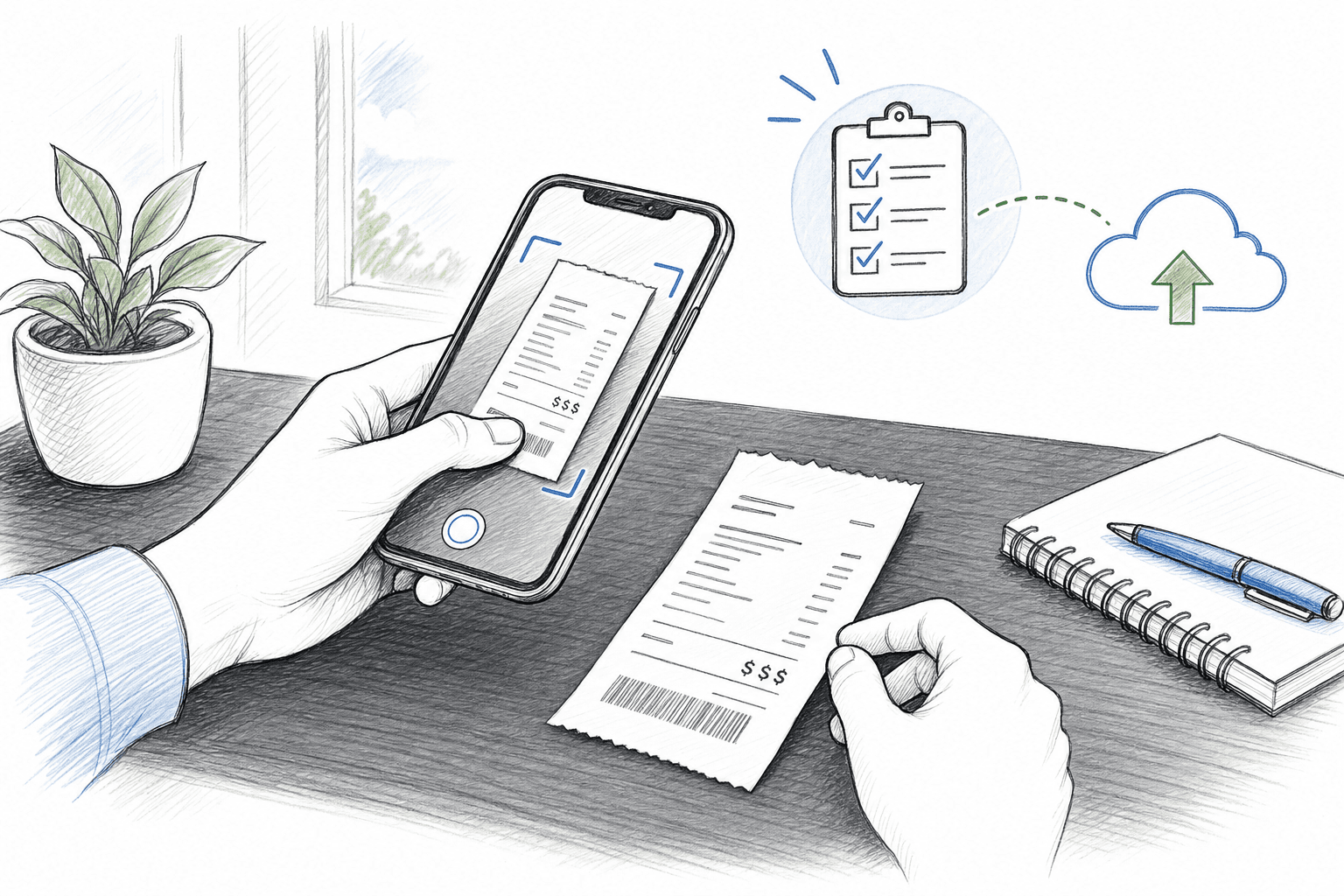
Scanning receipts sounds simple until you need one specific receipt months later for taxes, reimbursement, warranty, or a card dispute.
This guide explains the full workflow end to end: how to capture high-quality scans, what details to verify, how to organize files so they stay useful, and how to adapt the process for different real-life use cases.
If you also want app recommendations, read Best Receipt Scanning App: Honest Review or 7 Best Free Receipt Scanner Apps: Practical Picks for 2026. If you are specifically on Apple devices, use How to Scan Receipts on iPhone: Complete Guide for the Notes-first iPhone workflow.
quick answer
If you want the shortest version, do this every time:
Flatten receipt on a dark, matte background in bright indirect light.
Scan in a document app using auto-edge detection.
Crop tightly, rotate upright, and export as searchable PDF.
Confirm merchant, date, tax, and total are readable.
Name file as
YYYY-MM-DD_merchant_total_category.Add tags (
tax,reimbursable,warranty) and back up to cloud immediately.
That six-step habit solves most receipt problems before they happen.
why scanning receipts matters
People usually start scanning receipts for one reason, then discover it helps many others.
Common outcomes:
Better monthly spending visibility.
Faster reimbursement approvals.
Cleaner bookkeeping and easier reconciliation.
Stronger tax and audit documentation.
Less risk from fading thermal paper.
Faster warranty, return, and insurance claims.
what makes a "good" receipt scan
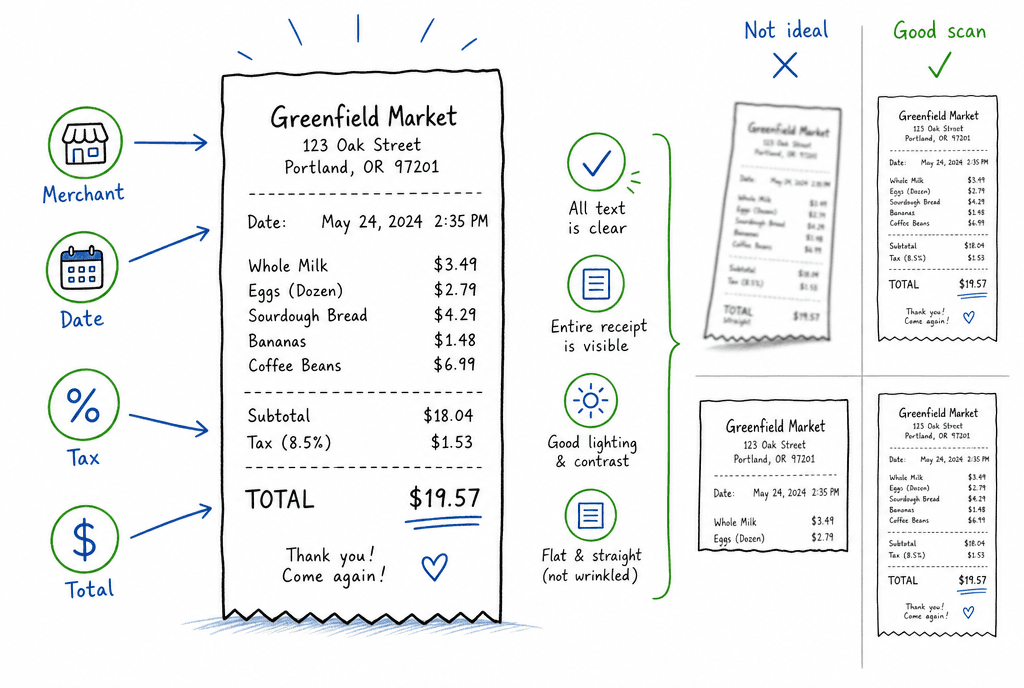
A clean scan is one where critical fields stay readable when you need them later.
A good scan is not just visually nice. It is operationally useful.
At minimum, your scanned receipt should have:
Merchant name.
Date of purchase.
Subtotal, tax, and total.
Payment indicator (if needed for your workflow).
Item details when relevant (warranty, returns, COGS, policy checks).
If any of these are unreadable, the receipt may fail you exactly when you need it.
before you scan: setup checklist
1) prepare the paper
Flatten folds and wrinkles.
Remove it from wallet curves or stapled bundles.
For long receipts, unroll completely before capture.
2) prepare the environment
Use bright, even light.
Avoid direct flash on glossy paper.
Place receipt on a dark non-reflective background.
Keep hands and shadows off the receipt body.
3) choose the right capture mode
Use a document scanner mode, not regular camera mode.
Enable automatic edge detection and perspective correction.
Prefer OCR-enabled capture if available.
how to scan receipts step by step
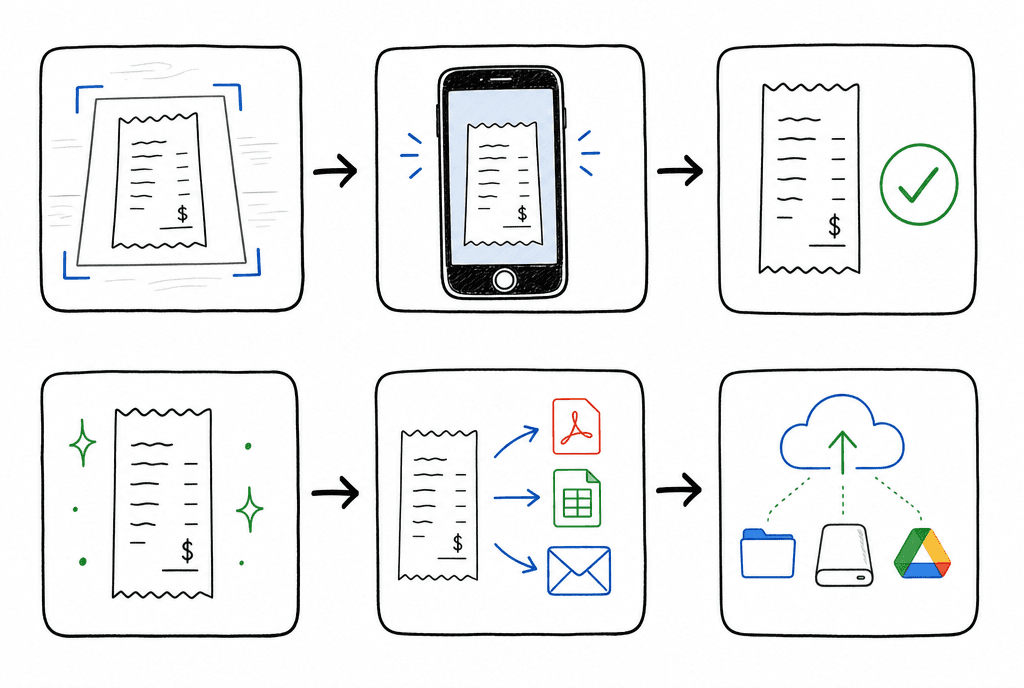
Six simple actions, done consistently, prevent most receipt headaches.
step 1: frame correctly
Hold the camera parallel to the receipt (top-down).
Keep all four corners visible.
Fill most of the frame, but do not clip edges.
Wait for focus lock before capture.
step 2: capture and review instantly
Take one scan, then zoom in and inspect readability.
Re-scan immediately if text looks soft, glared, or cropped.
Never postpone quality checks; you may not have the paper later.
step 3: clean the scan
Crop tightly to receipt edges.
Rotate upright.
Apply a mild document filter for contrast.
Avoid overprocessing that erases light print.
step 4: export in the right format
Use searchable PDF as default.
Use image format only when your app requires it.
Keep quality high enough to read small line items.
step 5: name and categorize immediately
Use a naming convention you can keep forever.
Recommended format:
YYYY-MM-DD_merchant_total_category
Examples:
2026-05-09_costco_84.21_office.pdf2026-05-09_uber_23.50_travel.pdf
step 6: back up and sync
Upload to a cloud folder automatically.
Confirm the file opens from another device.
Keep paper until backup and legibility are verified.
OCR best practices (so text is actually searchable)
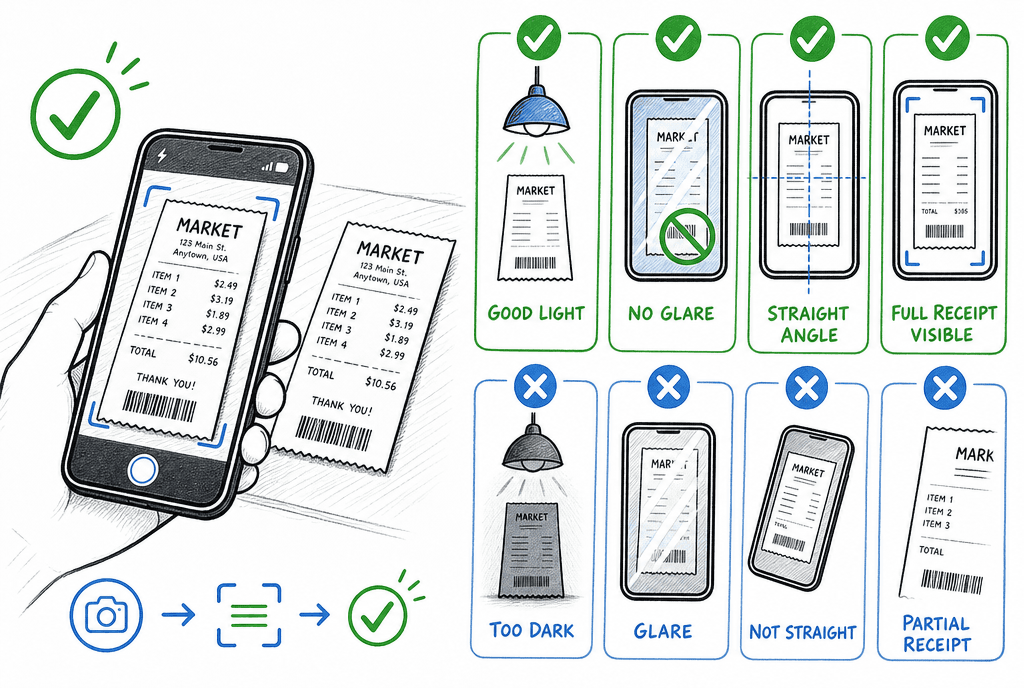
OCR quality improves most when capture conditions are clean and consistent.
OCR accuracy depends mostly on capture quality, not app marketing claims.
Tips that increase extraction quality:
Scan in good light with minimal skew.
Keep receipt centered and full-length.
Re-capture faded thermal receipts at highest quality.
Capture long receipts in sections if necessary, then merge.
Correct OCR fields right away while context is fresh.
Fields to verify every time:
Merchant
Date
Tax
Total
Currency (for international purchases)
organization system that works long-term
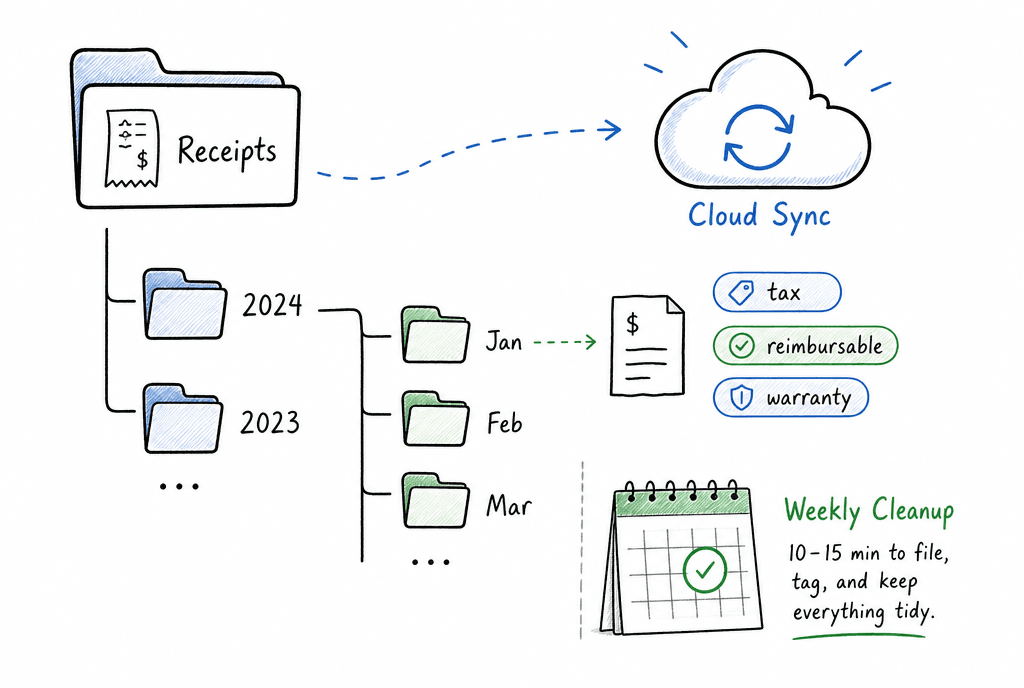
A lightweight folder-and-tag system is enough if you keep it consistent.
Most failures happen after scanning, not during scanning.
Use simple structure first:
Folder by year:
Receipts/2026/Optional monthly subfolders:
Receipts/2026/05/Tags or labels:
tax,reimbursable,warranty,medical,travel,office
Then add one weekly maintenance routine:
Deduplicate files.
Fill missing categories.
Resolve unreadable scans while paper still exists.
Ten minutes weekly prevents giant cleanup projects later.
use-case playbook
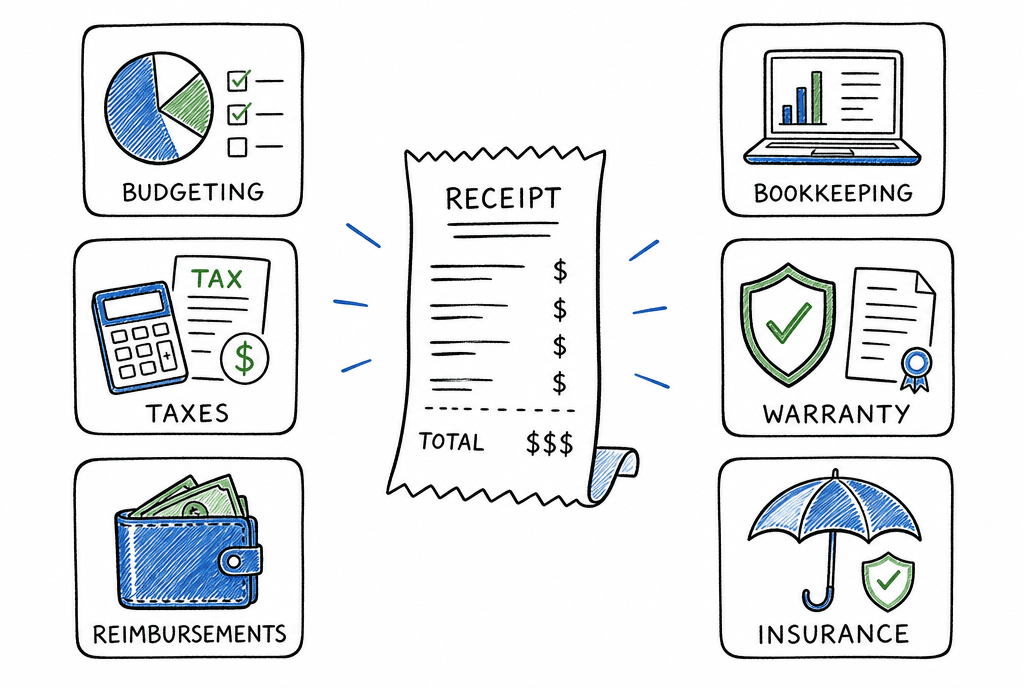
Different goals need different receipt details, but the same core scan habit.
Different people need different details from the same receipt.
personal budgeting
Capture need: quick categorization and trend tracking.
Must verify: merchant, date, total, category.
Extra tip: avoid overusing
misc; pick stable categories.
taxes (self-employed or small business)
Capture need: deduction evidence and audit trail.
Must verify: merchant, date, tax, total, business purpose.
Extra tip: add a short purpose note at capture time.
reimbursements (employee/team)
Capture need: policy-compliant submission.
Must verify: itemized details when required, tip line if relevant.
Extra tip: include project/client/cost-center tag in filename or metadata.
bookkeeping/accounting
Capture need: transaction-level documentation.
Must verify: totals match bank/card statement.
Extra tip: match scan date/amount with transaction during weekly reconciliation.
warranty and returns
Capture need: proof of purchase and purchase date.
Must verify: item description line and merchant details.
Extra tip: store related serial number photos with the receipt.
insurance claims
Capture need: ownership and value evidence.
Must verify: item and amount clarity.
Extra tip: keep high-value receipts in a dedicated folder with item photos.
common mistakes and how to avoid them
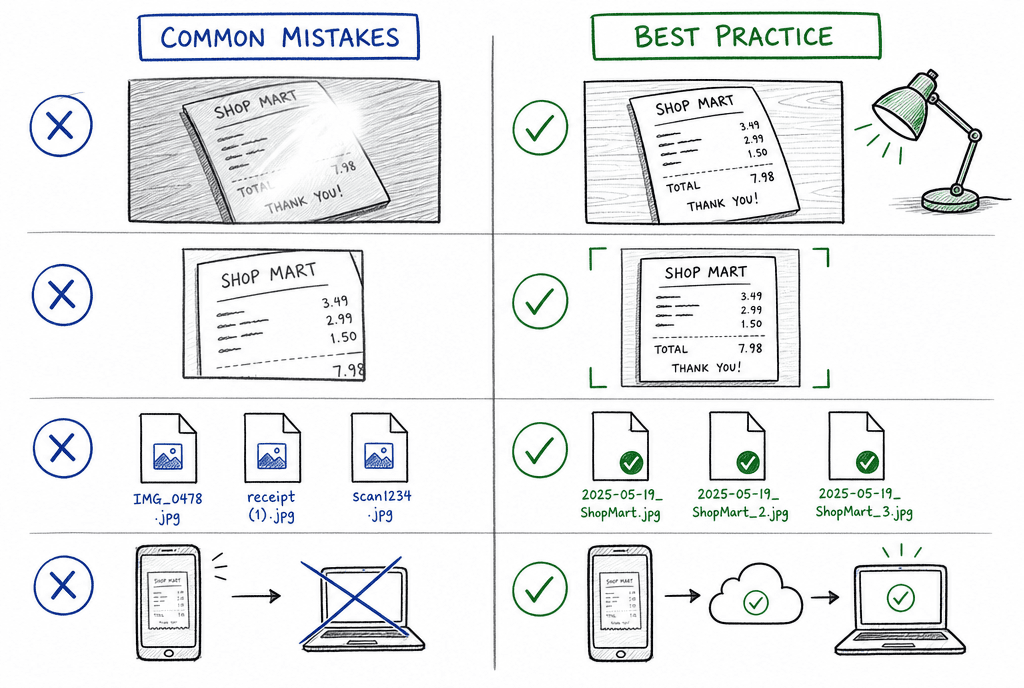
Most failures come from a few avoidable mistakes in capture, naming, and backup.
mistake: scanning too late
Thermal paper fades quickly. Scan same day whenever possible.
mistake: glare from flash
If text looks washed out, disable flash and improve room lighting.
mistake: cutting off top or bottom
Always confirm the header and total section are fully visible.
mistake: inconsistent names
Inconsistent naming makes later search painful. Use one format everywhere.
mistake: no backup verification
Uploading is not enough. Open the cloud copy once to confirm integrity.
mistake: duplicate records
Do not keep separate unlinked copies from email, app, and camera without deduping.
privacy and security basics
Receipts can contain sensitive details (last four digits, location patterns, tax IDs).
Basic safeguards:
Use app lock/biometric lock where available.
Store receipts in trusted cloud accounts with MFA enabled.
Limit sharing permissions on receipt folders.
Redact unnecessary card details before external sharing.
how long should you keep scanned receipts?
Retention depends on country, tax rules, and business type, but practical defaults are:
Personal/non-tax purchases: keep through return window and warranty period.
Tax-related records: keep for your jurisdiction's required period.
Business accounting records: follow your accountant's retention policy.
When unsure, keep digital copies longer rather than shorter. Storage is cheap; missing proof is expensive.
receipt scanning checklist (copy and use)
Before save:
All corners visible
No glare or blur
Merchant/date/tax/total readable
Correct crop and rotation
After save:
File named consistently
Category/tag applied
Backup confirmed
Paper kept until verification complete
faq
should i save receipts as pdf or jpg?
Use PDF by default, especially searchable PDF. It is better for archiving, multi-page receipts, and long-term retrieval.
what dpi or quality should i use?
If your app allows it, keep high quality around document-level clarity (often about 300 DPI equivalent). Prioritize legibility over smaller file size.
can i throw away paper receipts after scanning?
Usually yes after verifying legibility, backup, and policy requirements. Keep originals longer for high-value purchases or strict compliance cases.
what if a receipt is very long?
Capture in sections and merge into one PDF, or use an app with long-document mode. Confirm totals and item lines are still readable.
what if OCR extracted the wrong amount?
Correct it immediately, then save. Build a habit of spot-checking key fields instead of trusting OCR blindly.
final thoughts
The best receipt scanning system is the one you can follow consistently, not the one with the most complex setup.
Start with a reliable capture habit, add clear naming, then add categories and weekly cleanup. That simple routine is enough to support personal budgeting, reimbursements, taxes, bookkeeping, and claims without chaos.
related guides
Explore ReceiptExtract
ReceiptExtract is an OCR and data extraction tool that turns receipt images into structured fields you can validate, export, or send to your accounting and automation workflows.