How to Scan Receipts on iPhone: Complete Guide
Learn how to scan receipts on iPhone using the native Notes scanner first, plus iPhone-specific OCR, naming, backup, and workflow tips for taxes, reimbursements, and budgeting.

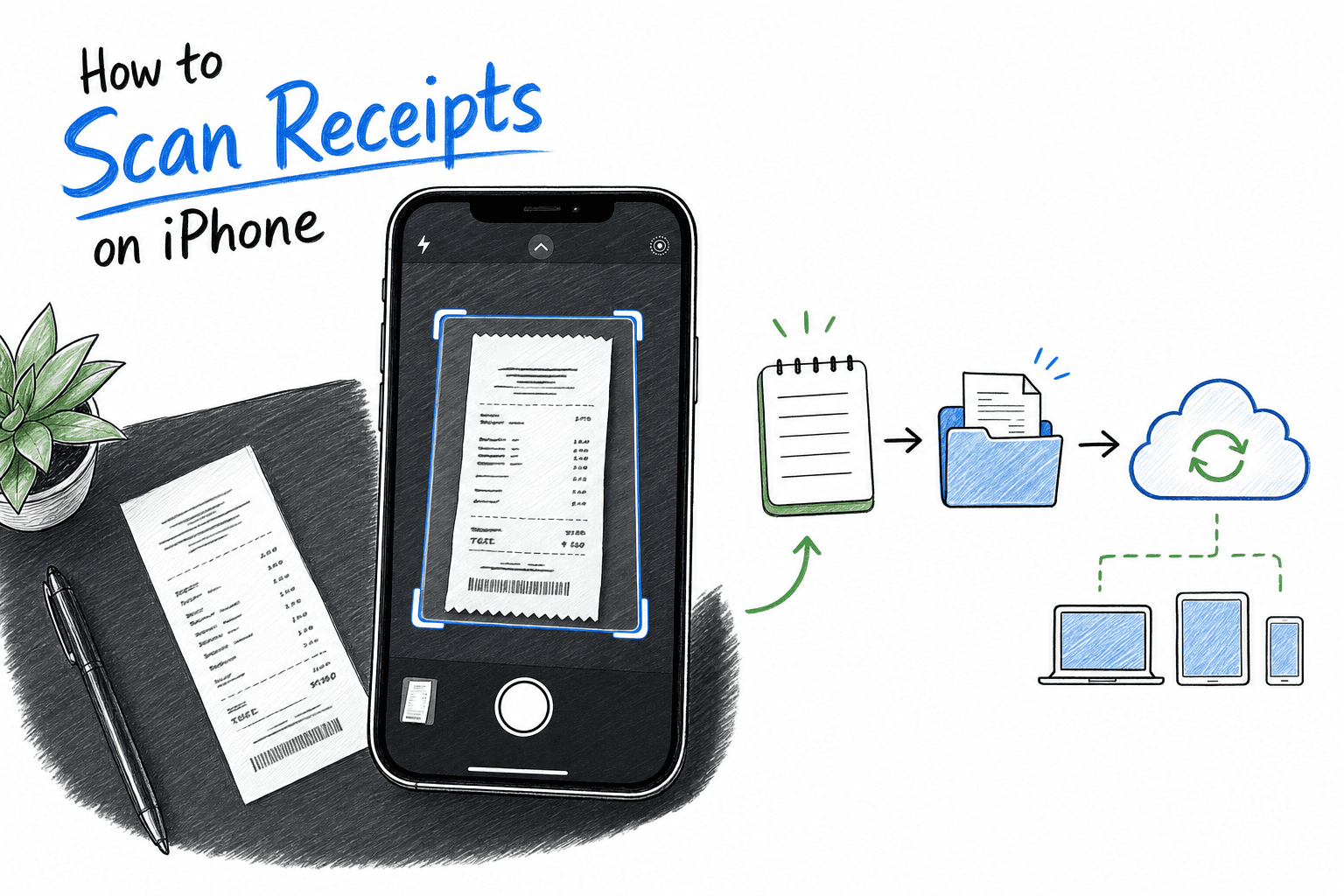
If you are on iPhone, you do not need to start with another app. Apple already gives you a solid document scanner in Notes, and for many people it is enough to build a clean, reliable receipt system.
This guide covers the full iPhone-native workflow first, then shows when to add a dedicated receipt app for OCR fields, categories, reimbursements, or accounting sync.
If you want the platform-agnostic version, read How to Scan Receipts: Complete Practical Guide.
quick answer
Use this iPhone flow:
Open
Notes-> create/open a note -> tapCamera->Scan Documents.Place receipt on a dark matte background in even light.
Let auto-capture detect edges, then review crop/rotation.
Save as scan in Notes, then
Share->Save to Filesas PDF.Rename with
YYYY-MM-DD_merchant_total_category.Store in iCloud folder structure and tag immediately.
That is the simplest high-quality setup for most iPhone users.
why iPhone scanning is different
The core principles are universal, but iPhone adds practical advantages:
Fast built-in scanner, no setup friction.
Strong automatic edge detection and perspective correction.
Tight iCloud sync across iPhone, iPad, and Mac.
Easy sharing to Files, Mail, Drive, and expense apps.
Live Text support for quick copy/paste from scans.
Main limitation: Notes is a great scanner, but not a full expense system. It will not replace category rules, reimbursements, approval flows, or bookkeeping automation.
prerequisites and setup (once)
Before your first batch, set up a simple system:
Create folder path in Files, for example
iCloud Drive/Receipts/2026/05.Decide file naming standard.
Define 5-8 category tags you will actually use.
Turn on iCloud for Notes and Files so scans sync automatically.
Recommended naming format:
YYYY-MM-DD_merchant_total_category
Example:
2026-05-09_target_42.18_office.pdf
step-by-step: scan receipts with iPhone Notes
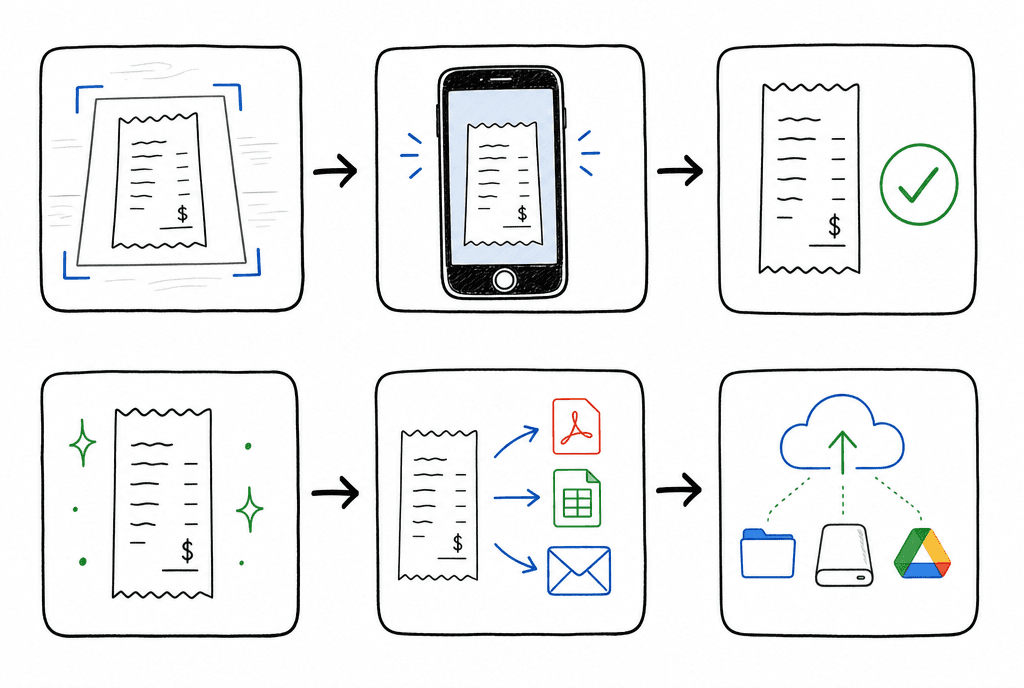
The same six-step capture habit, applied to iPhone Notes and Files workflow.
step 1: open the native scanner
Launch
Notes.Open or create a note for the current month/trip/project.
Tap the camera icon and choose
Scan Documents.
Validation checkpoint:
Confirm you are in
Scan Documents, not regular photo mode.
step 2: prepare the receipt and lighting
Flatten the receipt fully.
Use bright, indirect light.
Put receipt on a dark, non-glossy surface.
Avoid flash glare on thermal paper.
Validation checkpoint:
You can clearly read merchant, date, and total before capture.
step 3: capture with edge detection
Hold phone parallel to receipt (top-down).
Keep all four corners visible.
Let iPhone auto-capture, or tap manually if needed.
Validation checkpoint:
No cropped header/footer, no blur, no strong shadow.
step 4: review and clean
Adjust corners if auto-crop missed edges.
Rotate upright.
Re-scan immediately if text looks faint.
Validation checkpoint:
Critical fields remain readable when zoomed in.
step 5: export to Files as PDF
In Notes, tap share and save the scan to
Files.Place it in your receipt folder.
Rename using your convention.
Validation checkpoint:
File opens correctly from Files and from iCloud on another device.
step 6: categorize and mark workflow status
Add category in filename or note metadata.
Add status suffix if helpful (
tax,reimb,warranty).If needed, attach to an expense app right away.
Validation checkpoint:
You can locate the receipt in under 10 seconds by search.
iPhone-specific tips for better OCR results
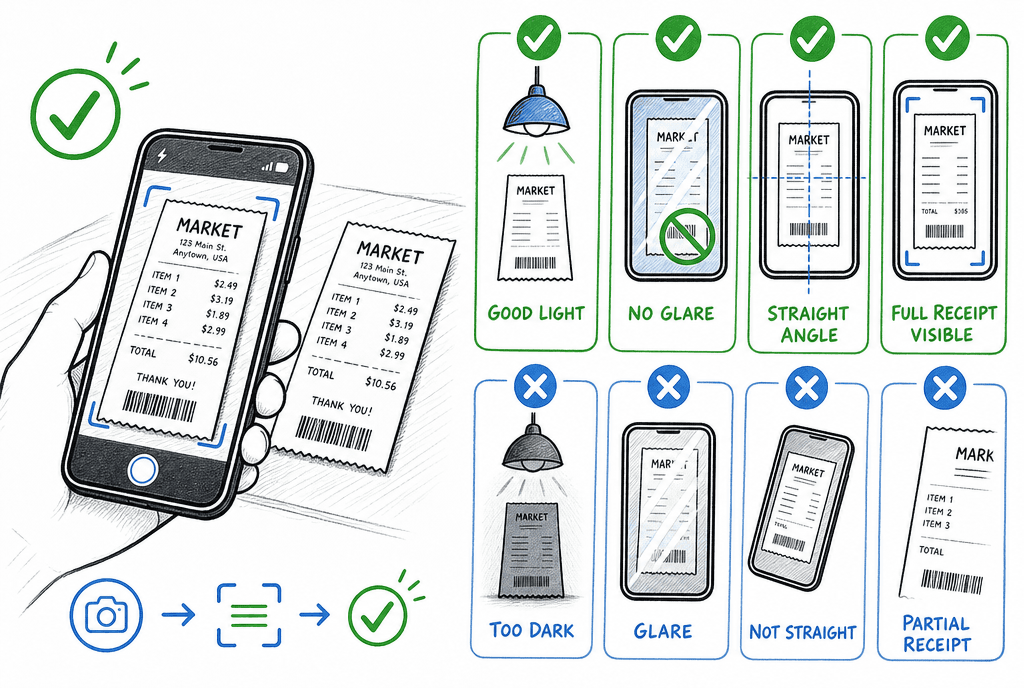
Better capture conditions on iPhone produce more reliable OCR fields.
Tap to focus on faint totals before capture.
For long receipts, scan in multiple pages and keep as one PDF.
Re-scan thermal receipts ASAP; they fade fast.
Use neutral capture conditions over heavy filters.
Spot-check merchant/date/tax/total every time.
Notes OCR is useful for quick lookup, but extraction into structured fields is limited compared to dedicated receipt apps.
when Notes is enough vs when to use a receipt app
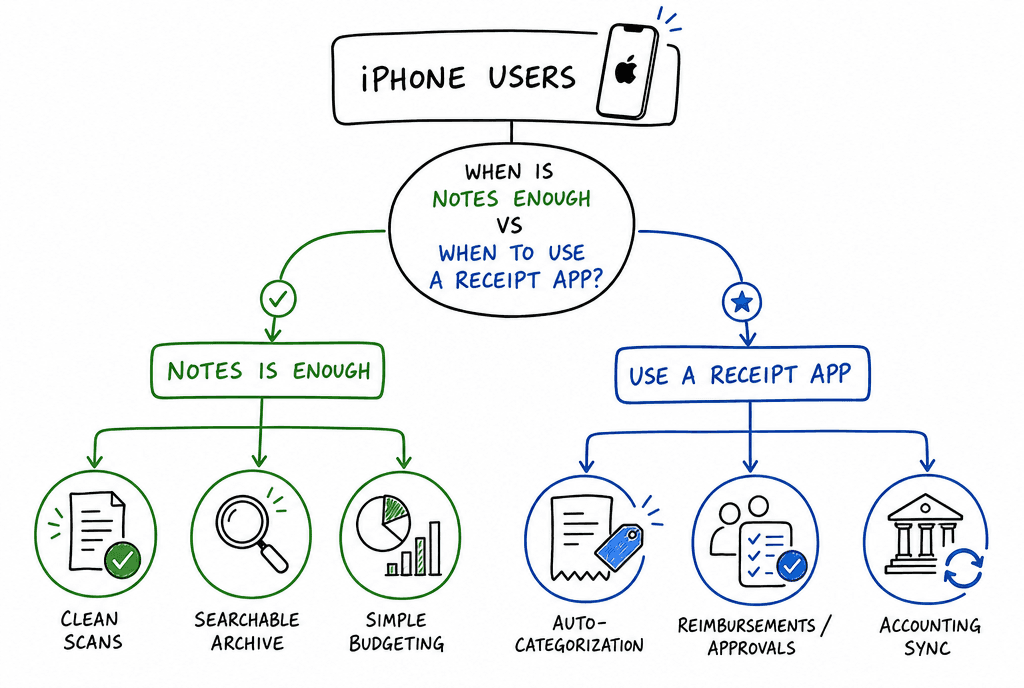
Use Notes for clean archive workflows; add an app when automation and approvals matter.
Notes is enough if you mostly need:
Clean digital copies.
Searchable archives.
Simple personal budgeting or warranty records.
Add a dedicated app if you need:
Auto-categorization rules.
Reimbursement workflows and approvals.
Accounting integrations (QuickBooks/Xero).
Better structured OCR exports.
Related picks: Best Receipt Scanning App for iPhone: Top Picks for 2026.
limitations of using Apple Notes for receipts
Apple Notes is excellent for capture, but it has real limits once your workflow grows.
Main shortcomings:
OCR is not deeply structured for expense workflows (merchant/date/tax/total mapping can require manual work).
No built-in reimbursement approvals, policy checks, or submitter-manager finance flow.
Limited expense categorization rules compared with dedicated tools.
No robust accounting automation for reconciliation and duplicate detection.
Reporting is basic (no strong expense analytics or tax-ready export workflows by default).
At scale, search can get messy if naming/folder discipline is inconsistent.
For simple personal archiving, Notes is often enough. For recurring tax, reimbursement, or bookkeeping operations, most people eventually outgrow it.
what to use when you outgrow Notes
Choose based on your next bottleneck:
Need better iPhone workflow + team reimbursements: read Best Receipt Scanning App for iPhone: Top Picks for 2026.
Need broader tool comparison across budgets and teams: read Best Receipt Scanning App: Honest Review.
Need free or low-cost alternatives first: read 7 Best Free Receipt Scanner Apps: Practical Picks for 2026.
Need tax-focused record quality and setup: read Best Receipt Scanning App for Taxes: Best Picks for Filing Season.
Need a lightweight personal workflow: read Best Receipt Scanning App for Personal Use: Simple Picks That Actually Work.
Practical transition path:
Keep Notes as your no-fail capture backup.
Pilot one dedicated app for two weeks with real receipts.
Compare OCR accuracy, correction speed, categorization, export quality, and monthly effort saved.
Move primary workflow only after the new setup clearly reduces weekly admin time.
iPhone workflows by use case
personal budgeting
Best path: Notes + Files + weekly review.
Must verify: merchant, date, total, category.
Tip: keep categories small and consistent.
taxes (freelancer/small business)
Best path: Notes capture + same-day rename/tag + monthly export review.
Must verify: tax amount and business purpose note.
Tip: include purpose in filename or companion note.
reimbursements
Best path: capture in Notes only if policy allows, then submit in expense app.
Must verify: itemized lines and tip line where required.
Tip: append project or cost center in filename.
bookkeeping
Best path: Notes for capture, accounting app for classification and matching.
Must verify: totals match card/bank transactions.
Tip: reconcile weekly to avoid month-end backlog.
troubleshooting on iPhone
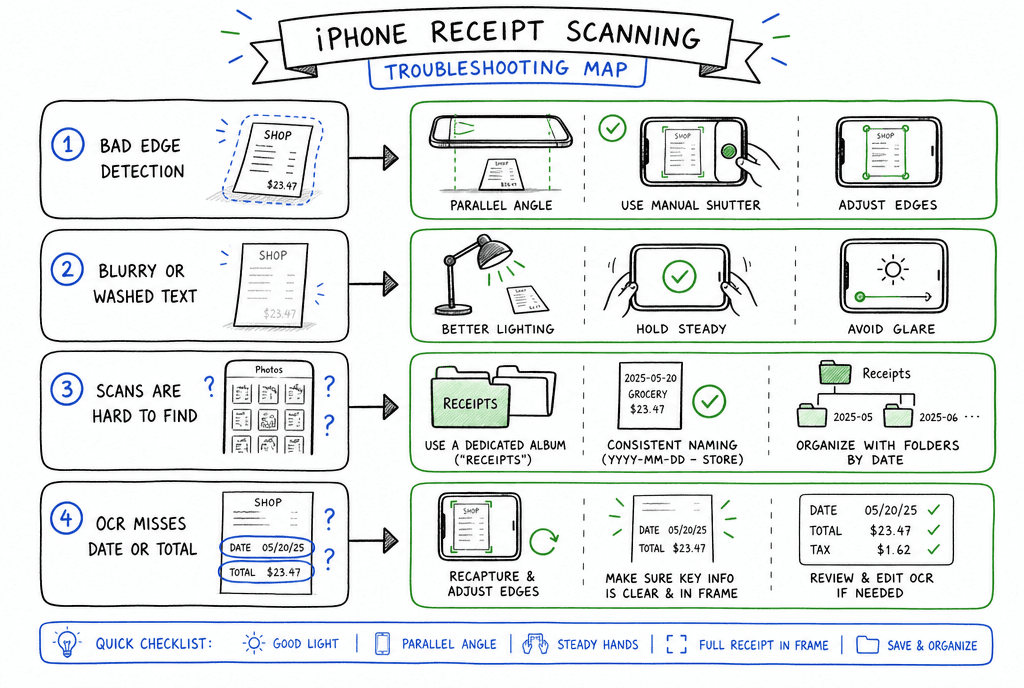
Quick issue-to-fix map for common iPhone receipt scanning failures.
edges are detected incorrectly
Switch to manual shutter.
Reposition to reduce background clutter.
Increase contrast with better lighting, not stronger filters.
text looks blurry or washed out
Clean camera lens.
Disable flash and move to indirect light.
Re-capture with phone perfectly parallel.
scan is hard to find later
Fix naming convention first.
Use one iCloud folder structure for all receipts.
Avoid storing half in Notes only and half in Files.
OCR misses amount or date
Confirm crop includes full receipt width.
Re-scan at higher clarity.
Manually correct key values immediately.
common mistakes iPhone users make
Using regular camera photos instead of
Scan Documents.Trusting OCR blindly without field checks.
Keeping receipts unnamed in random notes.
Waiting weeks before categorizing.
Mixing duplicate copies across Notes, Files, and email.
privacy and retention
Use Face ID/passcode protection on device.
Keep iCloud account protected with MFA.
Share receipt files with restricted permissions.
Keep tax-related receipts for your required legal period.
When in doubt, keep digital copies longer; storage is cheap and proof is valuable.
faq
what is the easiest way to scan receipts on iPhone?
Use Notes -> Scan Documents, then save to Files as PDF with a consistent filename.
should i use Notes or a receipt scanner app?
Start with Notes for simple capture. Move to a dedicated app when you need structured OCR, categories, reimbursements, or accounting sync.
does iPhone Notes save scans as PDF?
Yes, you can export and store scans as PDF through the share menu to Files or other destinations.
can i throw away paper receipts after scanning on iPhone?
Usually yes after confirming readability and backup, but keep originals longer for high-value, warranty, or strict compliance cases.
final thoughts
For most people, the best receipt-scanning workflow on iPhone starts with Apple Notes and good habits, not extra complexity.
Capture cleanly, name consistently, categorize early, and back up automatically. If your workflow grows, layer in a dedicated receipt app without changing the core capture discipline.
related guides
Explore ReceiptExtract
ReceiptExtract is an OCR and data extraction tool that turns receipt images into structured fields you can validate, export, or send to your accounting and automation workflows.